Categories
Cloud Software Development Tools & HowTo

Obsidian Sync Headless Client: Automation Unlocked

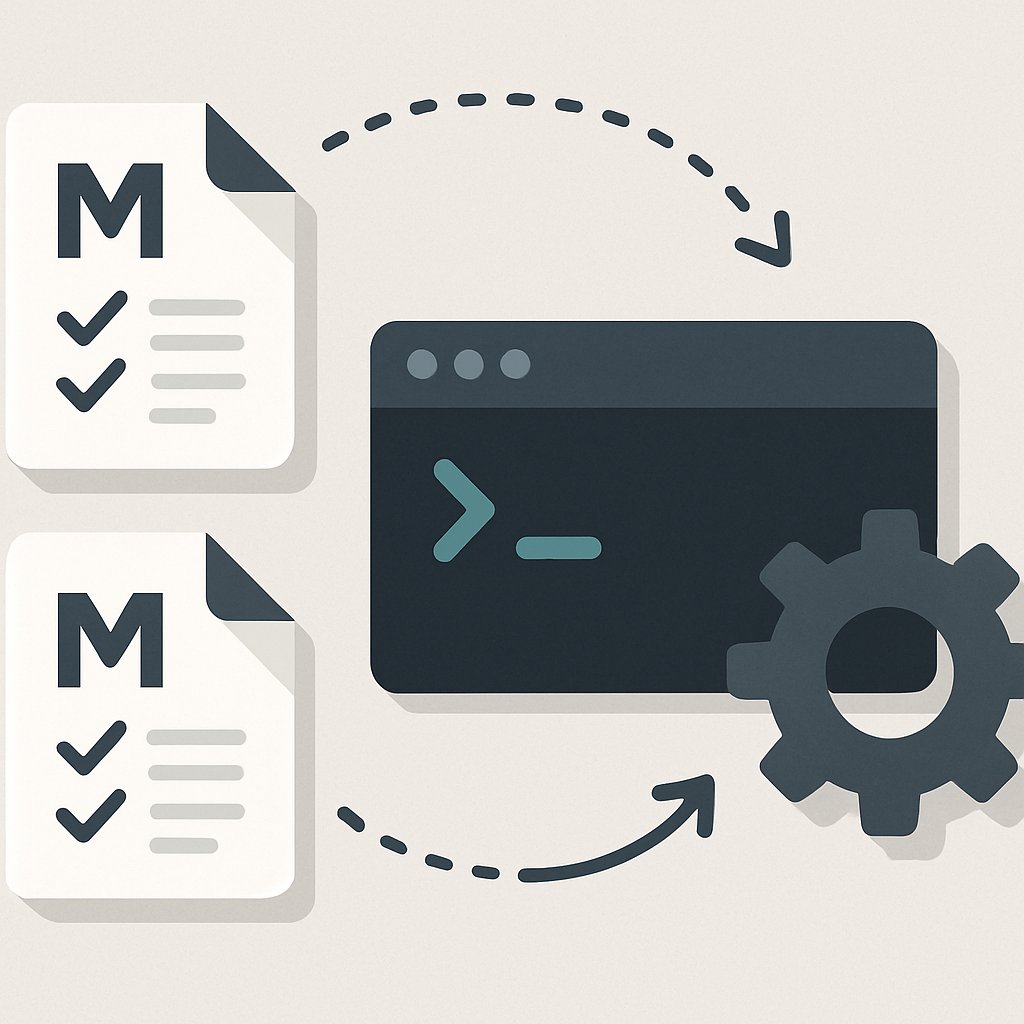
Obsidian Sync Goes Headless: What the New Client Unlocks for Power Users and AutomationObsidian Sync’s official support for headless operation fundamentally changes what’s possible for automation, scripting, and integration. With the release of the obsidian-headless client, you can now sync, back up, and manage your Obsidian vaults programmatically—no desktop or mobile app required. This opens up new workflows, but it’s critical to understand the real capabilities and limitations before relying on it in production.

Key Takeaways:

  • The obsidian-headless client (Obsidian 2026.02.27) provides official CLI support for headless sync—ideal for automation, scripting, and server-side workflows.
  • This enables programmatic vault backups and integrations without launching the GUI.
  • Obsidian vaults are inherently portable as local Markdown and JSON files—headless sync builds on this foundation.
  • Only the sync command is officially documented; unverified commands are not supported.
  • You must weigh trade-offs: no real-time collaboration, CLI complexity, and limited plugin compatibility.

Why This Matters Now

The arrival of headless sync support is a turning point for practitioners automating knowledge workflows. Previously, Obsidian’s architecture—local Markdown and JSON files, as outlined in the Obsidian Chinese forum guide—allowed for powerful offline control, but syncing in CI/CD or server contexts required awkward third-party tools or risky scripts.The official obsidian-headless client (Obsidian 2026.02.27 changelog) changes the landscape by providing a first-party CLI for syncing vaults. This lands at a time when demand for automation, compliance, and API-driven toolchains has never been higher. Organizations integrating notes with AI, analytics, or compliance pipelines now have a supported way to keep vaults updated without manual intervention.If you’re building automation around Obsidian, this is the first time you can do so natively, securely, and with support from the core platform.

How Headless Obsidian Sync Works

The obsidian-headless client is distributed on npm as an official Node.js tool. Its main function is to allow command-line sync of Obsidian vaults, using your Sync credentials, without the graphical app. This is especially valuable for automated backups, scripted workflows, and server-side integrations.

Installation and Basic Usage

To install the client globally:
npm install -g obsidian-headless
Once installed, the sync command is the primary, officially documented operation:
# Trigger a one-shot sync (replace with your actual vault path and token)
obsidian-headless sync --vault /path/to/vault --token $OBSIDIAN_SYNC_TOKEN
This command will synchronize your local vault with the Obsidian Sync server, pushing and pulling changes as needed. Note that, as of the latest release, there is no official support or documentation for additional commands such as pull, push, or status in obsidian-headless. You should consult the official changelog for updates.

How It Works

Obsidian vaults are simply folders of .md files (Markdown) and a .obsidian configuration directory. The CLI client operates directly on this structure, meaning any changes made via automation are immediately reflected in your vault, and vice versa.
CommandDescriptionOfficial Status
obsidian-headless syncSync local vault with Obsidian Sync serverConfirmed
obsidian-headless pullDownload changes from Sync (not documented)Not confirmed
obsidian-headless pushUpload notes to Sync (not documented)Not confirmed
obsidian-headless statusShow sync status (not documented)Not confirmed

Only sync is officially supported. For unlisted commands or advanced flags, refer to the official changelog or the npm package page.

Practical Examples: Headless Automation in Action

What can you actually do with headless sync? Here are real-world, runnable automation scenarios focused on practical needs and using only the officially supported syntax.

1. Scheduled Vault Backups with Cron

Automate nightly syncs to ensure your notes are always up to date—even if the app never opens:
# Nightly sync at 2am via crontab
0 2 * * * obsidian-headless sync --vault /srv/notes/project-vault --token $OBSIDIAN_SYNC_TOKEN
This approach is robust for automated backups or disaster recovery pipelines.

2. Integrate with Documentation Build Pipelines

If your CI/CD process builds docs from your Obsidian vault, sync the vault as a first step:
# In your CI/CD script
obsidian-headless sync --vault ./docs --token $OBSIDIAN_SYNC_TOKEN
# Then build your static site
mkdocs build
This ensures your published documentation always reflects the latest content from Obsidian Sync.

3. Pre-Sync Content Transformation

Batch modify your Markdown files (e.g., add frontmatter, tags, or run linting) before syncing:
# Transform all Markdown files, then sync
find /vault/notes -name "*.md" -exec python add_frontmatter.py {} \;
obsidian-headless sync --vault /vault/notes --token $OBSIDIAN_SYNC_TOKEN
This workflow enables advanced programmatic content management and ensures changes are synchronized across devices.

Considerations, Limitations, and Alternatives

Obsidian headless sync is a major step forward, but comes with noteworthy trade-offs:
  • Single Official Command: Only sync is documented and supported; unverified commands may not work or could break in future releases.
  • No Real-Time Collaboration: Obsidian Sync (including headless) does not support live multi-user editing. Teams requiring this should look elsewhere.
  • No Browser Interface: Everything must be managed via CLI or the desktop/mobile app—there’s no web UI for vault management (source).
  • Plugin Limitations: Many plugins rely on UI features that aren’t available or testable in headless mode. Always validate plugin workflows before production use.
  • Learning Curve: CLI-based automation is less forgiving than GUI workflows and misconfigurations can propagate quickly.

How Does Obsidian Headless Compare?

SolutionAutomationCollaborationWeb AccessBest Use Case
Obsidian + obsidian-headlessYes (official CLI)NoNoScripted backups, power-user automation
Dropbox / GitYes (via third-party scripts)Limited (manual conflict resolution)Partial (Dropbox web, GitHub web)Basic sync/versioning, some collaboration
Notion / Google DocsLimited (API, Zapier)Yes (real-time)YesTeam collaboration, browser access
  • Choose headless Obsidian for privacy, automation, and local control.
  • For live team editing, Notion or Google Docs are better suited.
  • Dropbox or git suffice for simple file sync/versioning, but lack Obsidian-specific conflict handling and plugin support.
For more on workflow trade-offs, see modern API automation patterns.

Common Pitfalls and Pro Tips

  • Token Security: Store your Sync token in an environment variable or secrets manager, not hardcoded in scripts.
  • Vault Path: Always use absolute paths in automation to avoid breakage from changing working directories.
  • Plugin Compatibility: Test plugin-dependent workflows in a non-production vault—many plugins expect a UI context.
  • Backup Discipline: Even with Sync, maintain separate offsite backups; CLI mistakes can cascade quickly.
  • Script Validation: Avoid running destructive operations (e.g., mass deletes) before syncing; validate transformations upstream.

Conclusion & Next Steps

The official obsidian-headless client transforms what’s possible for automation-driven note-taking. If you need scripted vault syncs, scheduled backups, or programmatic integration, headless sync is the missing link—provided you stay within the boundaries of documented support. For team collaboration or browser-first workflows, alternatives remain superior.Next: Test obsidian-headless in a sandbox vault, review your automation and backup needs, and audit your plugin dependencies for CLI compatibility before migrating production workflows. For related automation techniques, see JavaScript Streams API modernization.If your workflow is built on scripting and automation, Obsidian’s headless sync unlocks new power—but demands careful, well-documented use.