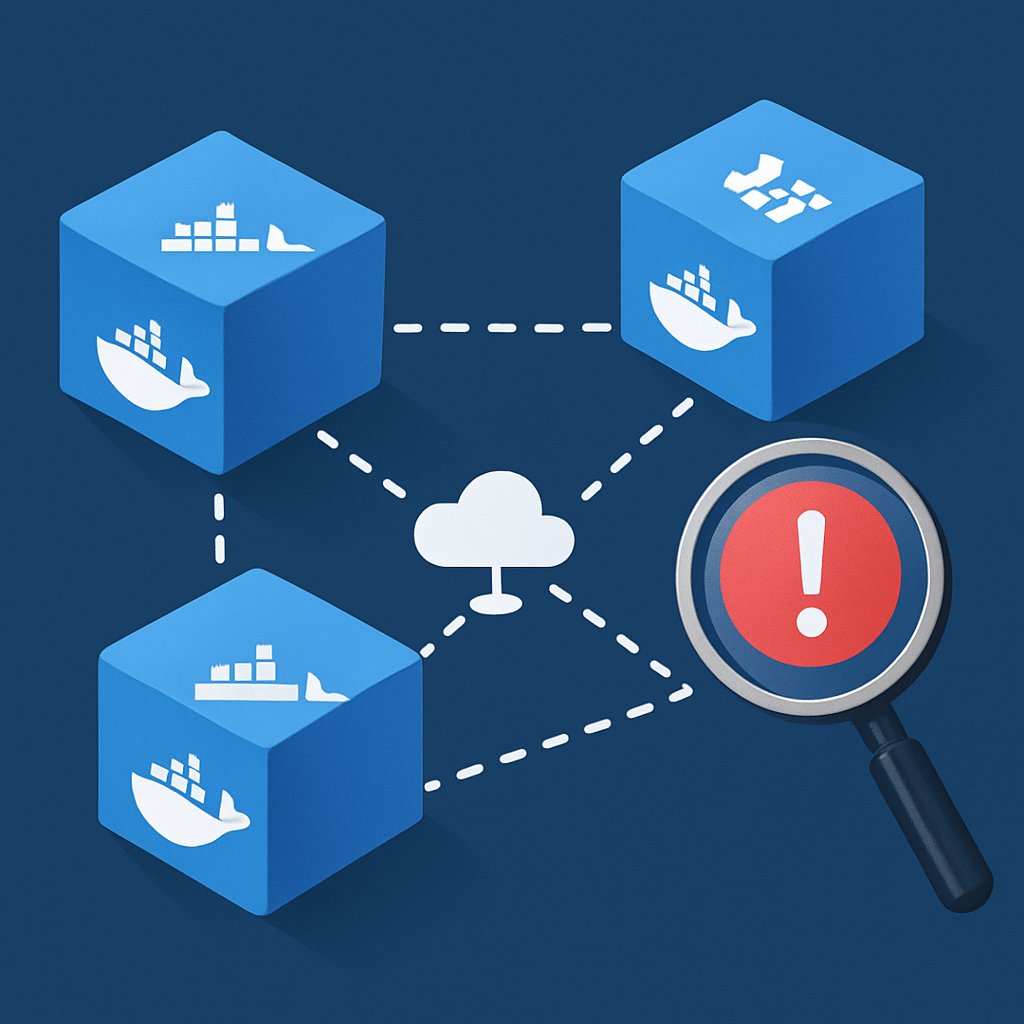
Practical Guide to Docker Networking and Debugging
Docker Networking Hands-On: Building and Debugging Real-World Container Networks
If your containers can’t communicate, your applications won’t scale or operate reliably. Most Docker guides stop at trivial setups; this post gives you a production-focused walkthrough of Docker networking—using only commands and behaviors validated by Docker’s own documentation and real-world SRE experience. You’ll see how containers connect, isolate, discover each other, and what to check when networks break.
Key Takeaways:
- Use validated Docker CLI commands to create, inspect, and troubleshoot container networks
- Understand the difference between default bridge, user-defined bridge, and host networking—and when to use each
- Apply service discovery and isolation best practices using real command-line workflows
- Diagnose and fix connectivity and DNS issues with production-grade troubleshooting steps
- Recognize Docker networking’s inherent limitations and know credible alternatives
Why Docker Networking Matters
Docker networking is the backbone of container communication: it connects containers to each other, the host, and external networks. As OneUptime accurately states, “understanding how containers communicate is essential for building reliable applications.”
- Isolation by default: Every container starts in its own network namespace. No connectivity exists unless you explicitly configure it.
- Multiple network drivers: Docker ships with several network drivers. bridge (default, single-host, isolated), host (shares host’s stack), and overlay (multi-host, requires Swarm/Kubernetes).
- Production scenarios: You need internal-only service access, controlled ingress, and strict isolation for compliance and security.
When you need to enforce security, enable DNS-based service discovery, or debug why a service can’t reach its database, you’ll use these networking features at the CLI level. See our container security cheat sheet for more on network policy enforcement.

Networking Basics: Isolation and Communication
Docker networking provides each container with a separate network stack—including interfaces, routing tables, and firewall rules. The Docker daemon manages virtual bridges and links traffic between containers and the outside world. By default, containers are isolated and cannot talk to each other unless the appropriate network is configured. This model is essential for both security and flexibility. (Docker Docs)
Getting Started with Docker Networks
Inspecting Docker’s Default Networks
When Docker is installed, it automatically creates several default networks. List them using:
docker network ls
Typical output:
NETWORK ID     NAME      DRIVER    SCOPE
e3d3a1b1c5d2   bridge    bridge    local
7b3c8e2a1b43   host      host      local
9b2c8e2a1d21   none      null      local
The bridge network is the default for containers. host shares the host’s stack, and none provides complete isolation.
Running a Container on the Default Bridge
Start a container and inspect its network settings:
# Run an Nginx container on the default bridge network
docker run -d --name web-server nginx:alpine

# Inspect the container’s IP address
docker inspect web-server --format '{{.NetworkSettings.IPAddress}}'
The container gets an internal IP (commonly 172.17.0.X). Containers on the same default bridge can communicate via IP, but not by hostname.
Testing Connectivity Between Containers
# Launch a second container
docker run -d --name web-client busybox sleep 3600

# Enter the web-client shell and test connectivity to web-server by IP
docker exec -it web-client sh
# Inside the container shell:
ping 172.17.0.2
This ping should succeed, confirming basic connectivity. However, trying ping web-server will fail—the default bridge network does not support hostname resolution. DNS-based service discovery is only available on user-defined bridge and overlay networks. (Docker Docs)
- Service-to-service communication on the default bridge requires manual IP usage.
- Hostname-based resolution requires a user-defined bridge network (see next section).
Custom Bridge Networks and Service Discovery
Why Use a User-Defined Bridge?
The default bridge network is limited: no automatic DNS-based service discovery, weaker isolation controls. By creating your own bridge network, you get built-in DNS resolution—containers reach each other by name—and clearer boundaries between different app stacks.
Step-by-Step: Creating and Using a User-Defined Bridge
# Create a user-defined bridge network
docker network create --driver bridge app-net

# Run two containers on app-net
docker run -d --name db --network app-net postgres:alpine
docker run -d --name api --network app-net python:alpine sleep infinity

# Enter 'api' and ping 'db' by name
docker exec -it api sh
# Inside the shell:
ping db
Now db resolves automatically within the app-net network—this is DNS-based service discovery in action, and is not possible on the default bridge. (OneUptime)
Inspecting a Custom Network
docker network inspect app-net
This outputs all containers attached to app-net, including their names and IP addresses.
- Only containers on
app-netcan reach each other by name or IP. - Containers on other networks cannot access these services unless explicitly connected.
Best practice: use one custom bridge per logical app stack for isolation and simple service discovery.
For more on network segmentation, see our container security cheat sheet.
Advanced Networking: Port Mapping and Multi-Host Setups
Exposing Services with Port Mapping
By default, Docker containers aren’t reachable from outside the host. To expose a service, use port publishing:
# Publish host port 8080 to container port 80
docker run -d --name frontend -p 8080:80 nginx:alpine
Now, localhost:8080 on your host forwards to the container’s port 80. This is essential for making web apps or APIs accessible externally.
Using the Host Network Driver
For maximum performance (lowest latency, no port mapping), use the host network driver. This attaches the container directly to the host’s network stack:
# Run a container using the host’s network stack
docker run -d --name monitor --network host node:alpine node app.js
This approach removes the network isolation layer—use with care, as all ports and interfaces are shared between container and host. (Docker Docs)
Multi-Host Networking with Overlay Driver
To connect containers across multiple hosts, you must use the overlay driver, which requires Docker Swarm or Kubernetes. Overlay networks enable DNS-based service discovery and encrypted cross-host communication, but require orchestration setup.
| Docker Network Driver | Scope | DNS Service Discovery | Common Use |
|---|---|---|---|
| bridge (default) | single host | no | simple, single-host |
| bridge (user-defined) | single host | yes | multi-container stacks |
| host | single host | n/a | performance, monitoring |
| overlay | multi-host | yes | Swarm/K8s, production |
| macvlan | single/multi-host | no | legacy integration |
Choose a network driver based on your deployment needs: performance, isolation, and scalability requirements.
Troubleshooting and Debugging Container Networking
Diagnosing Connectivity and DNS Issues
- Check network membership:
docker network inspect app-netEnsure both source and target containers are attached to the same network.
- Test DNS-based service discovery:
docker exec -it api sh
# Inside container
ping db
If this fails, containers are not on the same user-defined bridge or overlay network.
- Test direct connectivity by IP:
ping <target_ip>If IP connectivity works but DNS doesn’t, double-check your network type and container names.
- For sudden errors like
client API versionmismatches, check for recent Docker CLI or daemon upgrades. These can cause compatibility errors (see Stack Overflow).
Debugging with Real Tools
- Use
docker network connectanddisconnectto temporarily change container network memberships for tests. - Attach packet sniffers like
tcpdump(install inside the container as needed) to inspect traffic. - Check application logs for errors that may appear as network issues but originate at the app layer.
Limitations and Alternatives
Strengths of Docker Networking
- Fast, simple local development: Multi-container apps are quick to spin up and tear down.
- Automatic service discovery: User-defined bridge and overlay networks enable seamless DNS-based lookup.
- Driver flexibility: Coverage for most scenarios—simple, performance, multi-host, and legacy integration.
Known Issues and Trade-Offs
- Default bridge lacks service discovery: No hostname/DNS resolution, only IP-based communication.
- Root-privileged daemon: Docker daemon runs as root; exposing the socket is a serious security risk.
- Shared kernel isolation: Containers share the host’s kernel, so kernel vulnerabilities can break isolation.
- Resource usage: Docker (especially Docker Desktop) can consume significant resources, notably on non-Linux systems.
- Version mismatch errors: CLI and daemon version drift can cause “client API version” errors, halting workflows.
Alternatives to Docker’s Networking Stack
| Tool | Strengths | Trade-offs |
|---|---|---|
| Podman | Daemonless, supports rootless mode, Docker CLI compatible | Smaller ecosystem, some features missing |
| Containerd | Lightweight, production-grade, Kubernetes integration | Minimal CLI, not a drop-in replacement for Docker’s full workflow |
| LXD | System containers, strong OS-level isolation | Higher complexity, less developer-friendly |
Production SREs focused on security increasingly evaluate Podman or Containerd for rootless or orchestrated scenarios, especially where Docker’s root daemon is a concern.
Pro Tips and Common Pitfalls
- Never expose the Docker socket to untrusted containers or hosts. This provides full root access to your system.
- Always use user-defined bridge networks for apps needing hostname-based service discovery. The default bridge does not support DNS resolution between containers.
- Don’t rely solely on container isolation for security. Harden the host, use firewalls, and configure network policies—see our container security cheat sheet.
- Avoid port collisions when publishing services. Binding multiple containers to the same host port will fail for all but the first container.
- Update Docker CLI and daemon together to prevent “client API version” errors that block container commands.
- Document your network setup—especially custom bridges and overlays. Clear documentation makes debugging and scaling far easier.
Conclusion and Next Steps
You now have a validated, production-focused foundation in Docker networking: from basic container communication to service discovery, isolation, debugging, and recognizing systemic limitations. For more on enforcing network policies and runtime security, review our container security cheat sheet.
Next, experiment with overlay networks for multi-host deployments, implement network policies, and evaluate Podman or Containerd for your security needs. For authoritative details, start with Docker’s official networking documentation.
Sources and References
This article was researched using the following sources:
References
Critical Analysis
Additional Reading
Thomas A. Anderson
Mass-produced in late 2022, upgraded frequently. Has opinions about Kubernetes that he formed in roughly 0.3 seconds. Occasionally flops — but don't we all? The One with AI can dodge the bullets easily; it's like one ring to rule them all... sort of...