Categories
DevOps & Cloud Infrastructure General Products

Plasma Bigscreen: A 10-Foot Interface for Linux

If you’re deploying Linux-powered home theater PCs, digital signage, or want a privacy-respecting alternative to mainstream smart TV software, Plasma Bigscreen is back on the radar—and it’s moving fast. KDE’s open-source 10-foot interface isn’t just a launcher for apps like Kodi; it’s a fully customizable, remote-friendly desktop environment for the living room. After years of near-abandonment, recent development surges are pushing Bigscreen toward real-world usability, but there are still practical trade-offs and gotchas to be aware of before you consider rolling it out to your couch or office lobby.

Key Takeaways:

  • Understand how Plasma Bigscreen turns any Linux device into a true smart TV platform—without vendor lock-in or data harvesting
  • Get actionable setup steps, including the latest on manual builds and input device support
  • Learn the real-world trade-offs: app compatibility, TV remote quirks, and where alternatives like Kodi and Android TV still lead
  • See how recent KDE development is reshaping the project, and what’s coming in Plasma 6.5
  • Spot common missteps and learn how to avoid them in production or home use

What Is Plasma Bigscreen?

Plasma Bigscreen is a free, open-source desktop environment for Linux, designed specifically for TVs, HTPCs, and set-top boxes. Unlike locked-down TV operating systems, it’s built atop the KDE Plasma stack—leveraging KWin, KDE Frameworks, Qt, and Kirigami—to deliver a fully remote-navigable, couch-friendly UI (source).

Key features include:

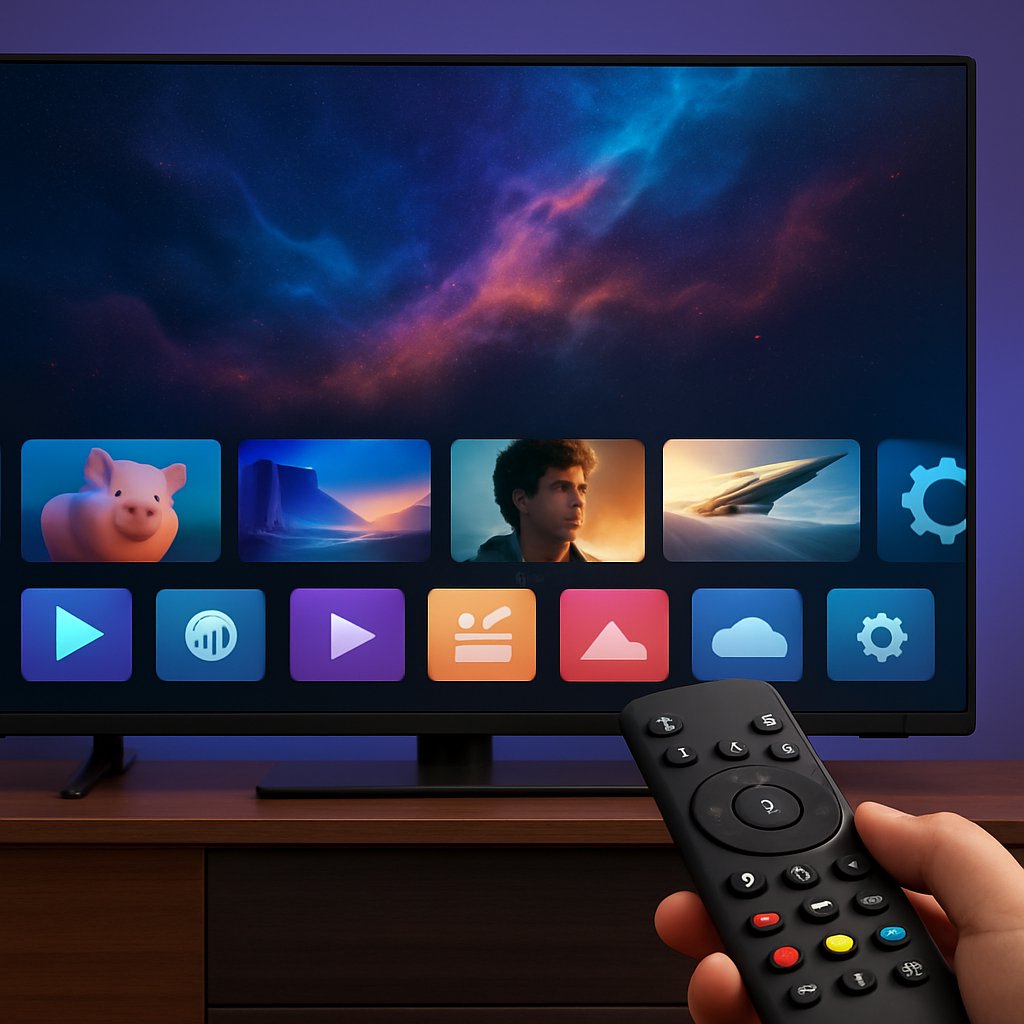
  • TV-friendly interface: Large, easy-to-read elements optimized for 10-foot viewing. All core controls are accessible via TV remote (HDMI-CEC), game controller, keyboard/mouse, or KDE Connect on your phone.
  • Settings on the big screen: A full settings app lets you configure networking, display, appearance, and more—no need for SSH or a second device.
  • App flexibility: You can launch any desktop Linux app, from Kodi and Jellyfin to Steam and web browsers, not just a curated app store selection (Hacker News).
  • Customization: Rearrange your homescreen, set wallpapers, and tweak colors—unlike most commercial TV platforms.
  • Privacy-first: No forced ads, telemetry, or data harvesting; your TV is truly yours.

Plasma Bigscreen is developed by KDE community volunteers and is positioned as a “platform that respects and protects the user's privacy to the fullest.” It’s also open to contributions—code, design, translations, or testing (official site).

If you’ve followed the open-source TV space, Bigscreen originally launched in 2020 but saw development stall until a renewed push in 2025 by contributor Devin Lin. Recent work includes:

  • Modern, decluttered homescreen and settings UI
  • The official Plasma Bigscreen documentation and news sources do not mention a 'KRunner-powered app search' specifically; they refer to a search overlay or app search, but not explicitly The official documentation and news sources do not mention a 'KRunner search overlay' in Plasma Bigscreen. They refer to a search overlay or app search, but not specifically KRunner..
  • The official documentation and news sources confirm improved controller/gamepad support, but do not specifically mention 'Xbox controller tested'.
  • Sidebar home overlay with quick access to running apps and search
  • The official documentation and news sources do not mention 'Initial support for running Flatpak apps from Flathub' as a new feature; rather, they state that you can install apps from Flathub, but not that this is a recent or initial feature.

For practitioners who value openness and control—as we’ve highlighted in our coverage of regulatory and privacy trends (California’s Age Verification Law)—Plasma Bigscreen offers a unique alternative to walled-garden smart TV OSes.

Setup and Configuration: From Source to Couch

Getting Plasma Bigscreen running isn’t quite plug-and-play yet. As of July 2025, the project is targeting inclusion in the Plasma 6.5 release cycle, but you’ll likely need to build it manually from source to access the latest improvements (ItsFOSS).

Prerequisites

  • A compatible Linux distribution (recent KDE Plasma base recommended; e.g., KDE Neon, Fedora Kinoite, Arch, or EndeavourOS)
  • Development tools: git, cmake, Qt, KDE Frameworks, and dependencies for building Plasma components
  • Hardware: x86 HTPC, ARM SBC (e.g., Raspberry Pi 4), or any device supported by your chosen distro
  • Input device: HDMI-CEC remote, game controller, or keyboard/mouse (KDE Connect for advanced phone control)

Example: Building and Launching Plasma Bigscreen

Below is a typical build sequence as documented by the project (official docs). Replace <your-path> as needed:

# Clone the Plasma Bigscreen repository
git clone https://invent.kde.org/plasma/plasma-bigscreen.git
cd plasma-bigscreen

# Create and enter build directory
mkdir build && cd build

# Configure the build (adjust Qt/KF5 paths as needed)
cmake ..

# Build
make -j$(nproc)

# Install (may require sudo for system-wide install)
sudo make install

# Launch Plasma Bigscreen session
plasma-bigscreen

For persistent sessions, configure your display manager to offer “Plasma (Bigscreen)” as a session type. See your distro’s KDE or SDDM documentation for details.

Configuring the Bigscreen Settings App

Once running, you can use the built-in settings app—navigable with a remote or controller—to:

  • Join Wi-Fi or Ethernet networks (via NetworkManager)
  • Adjust display output, resolution, and scaling
  • Change system appearance and color schemes
  • Review connected input devices

This eliminates the need for SSH or a second device for most setup tasks—an advantage over many DIY Linux TV setups.

Using Apps and Integrations

Where Plasma Bigscreen stands out is in flexibility. You’re not limited to a small set of “certified” apps. Any desktop Linux app, Flatpak, or web app can be launched—streaming, gaming, browsing, file management, and more (discussion).

Launching Media and Streaming Apps

  • Kodi: Full-featured media center—install via your distro or Flathub.
  • Jellyfin: Self-hosted streaming server for personal media libraries.
  • VacuumTube: YouTube client for the big screen (Flathub).
  • Steam: Game mode or “Big Picture” for living-room gaming.

Install apps via your Linux distribution’s package manager or Flatpak/Flathub, for example:

# Install Kodi and Flatpak support (example for Fedora)
sudo dnf install kodi flatpak

# Add Flathub repo and install Jellyfin
flatpak remote-add --if-not-exists flathub https://flathub.org/repo/flathub.flatpakrepo
flatpak install flathub org.jellyfin.JellyfinMediaPlayer

Launching these apps is seamless via the Bigscreen search overlay, powered by KRunner. You can also create your own desktop shortcuts or integrate web apps (e.g., a shortcut to https://tv.youtube.com via Aura Browser).

Example: Launching Steam in Bigscreen

# Install Steam (on Debian/Ubuntu)
sudo apt install steam

# Launch Steam from the KRunner search overlay, or add to homescreen for quick access

Input Devices and Navigation

Navigation works with:

  • HDMI-CEC TV remotes (hardware and driver support may vary)
  • Game controllers (Xbox, PlayStation, generic USB)
  • Keyboard/mouse for fallback
  • KDE Connect for phone-based control

Recent updates have improved controller support and added a “home” overlay for switching between running apps and accessing search/settings from anywhere (ItsFOSS).

Production Scenario: Digital Signage with Bigscreen

For kiosk and signage use, you can autostart a browser or custom app in full-screen mode by configuring ~/.config/autostart/ entries, just as you would on regular KDE Plasma. This flexibility is unmatched by proprietary TV OSes.

App/FeatureSupported?Notes
Kodi/JellyfinYesInstall via distro or Flatpak
Steam/Big PictureYesNative Linux Steam, controller support improved
HDMI-CEC remotePartialSupport improving; quirks on some TVs
Web browsersYesUse Aura or Chromium-based browsers
OTA TV (TDT)No (native)Needs third-party app; not built-in

Considerations and Trade-offs

Plasma Bigscreen’s flexibility and openness are unmatched—but so are its rough edges. Here’s what you need to weigh before deploying:

  • Manual builds and updates: As of mid-2025, you generally need to build from source to get the latest features. No official distro images or one-click installers—yet. This is a barrier for non-technical users (ItsFOSS).
  • HDMI-CEC and remote quirks: TV remote support is improving but is not fully polished. Some TV models and HDMI adapters may not work flawlessly for navigation and input. Expect to use a keyboard or controller as a fallback (Slashdot).
  • App compatibility: While you can install “any” Linux app, many are not designed for a 10-foot interface and may be awkward to use with a remote. Some Flatpak apps work well; others require tweaks or mouse input.
  • OTA TV support: Plasma Bigscreen does not natively handle over-the-air TV (e.g., TDT in Europe); you’ll need a third-party app and possibly custom configuration (KDE Discuss).
  • Documentation gaps: Official documentation has been intermittently unavailable or incomplete, making troubleshooting and advanced configuration time-consuming for new users.

Alternatives

How does Plasma Bigscreen stack up against other platforms?

PlatformProsCons
Plasma BigscreenOpen, customizable, privacy-focused, supports any Linux appManual setup, remote quirks, limited native TV features
KodiTurnkey, great media center UI, strong plugin ecosystemLimited app flexibility, not a full desktop environment
Android TVPolished, app-rich, strong TV remote supportClosed ecosystem, ads, privacy concerns, limited customization
Jellyfin TVGreat for self-hosted streamingNot a general-purpose desktop, needs separate server

For a deeper look at open-source alternatives in the living room, see the AlternativeTo list of Plasma Bigscreen competitors.

Common Pitfalls and Pro Tips

  • Expect to tinker: Plasma Bigscreen is not set-and-forget. Updates, bug fixes, and new features often require manual intervention or builds from source.
  • Input device mismatches: Not all HDMI-CEC adapters or TV remotes support the necessary protocol features for full navigation. Have a backup controller or keyboard on hand during setup.
  • App UI scaling: Many Linux apps are not optimized for 10-foot interfaces. Stick to those known to work well (Kodi, Jellyfin, VacuumTube, Steam Big Picture) or prepare to customize .desktop entries and scaling factors.
  • KDE Connect is a lifesaver: Use KDE Connect for remote control via smartphone, clipboard sharing, and notifications—it’s often more reliable than TV remotes.
  • Autostart and kiosk mode: For signage or locked-down environments, configure apps via ~/.config/autostart/ and limit user access to settings.
  • Monitor upstream progress: Significant UI, controller, and remote improvements are likely as Plasma 6.5 approaches. Participate in KDE community channels to stay ahead of breaking changes.

For more on troubleshooting Linux-based platforms in production, see our analysis of Firefox crash mitigation strategies—many lessons apply to kiosk and living room deployments as well.

Conclusion & Next Steps

Plasma Bigscreen is finally getting the attention it deserves, thanks to renewed KDE community efforts. If you need a privacy-first, highly flexible 10-foot interface—and are willing to tinker—Bigscreen is worth a look, especially as Plasma 6.5 nears release. For practitioners, it’s the only Linux TV platform offering full desktop flexibility without vendor lock-in or advertising bloat. But you’ll want to test hardware compatibility, plan for manual updates, and stay active in the community to keep up with rapid changes. For turnkey “just works” media center needs, Kodi or Android TV may still be a better fit. To track the evolution of open platforms and privacy-centric OSes, follow our coverage of OS-level regulation and compliance—the living room is the next battleground.